On this page
Start with the device you already own. A USB-C socket can look right while lacking the video output that display glasses need. Write down the exact phone, computer or console model, the glasses model and the task: a mirrored screen, an extended desktop or a software-controlled spatial workspace. Each needs a separate compatibility check.
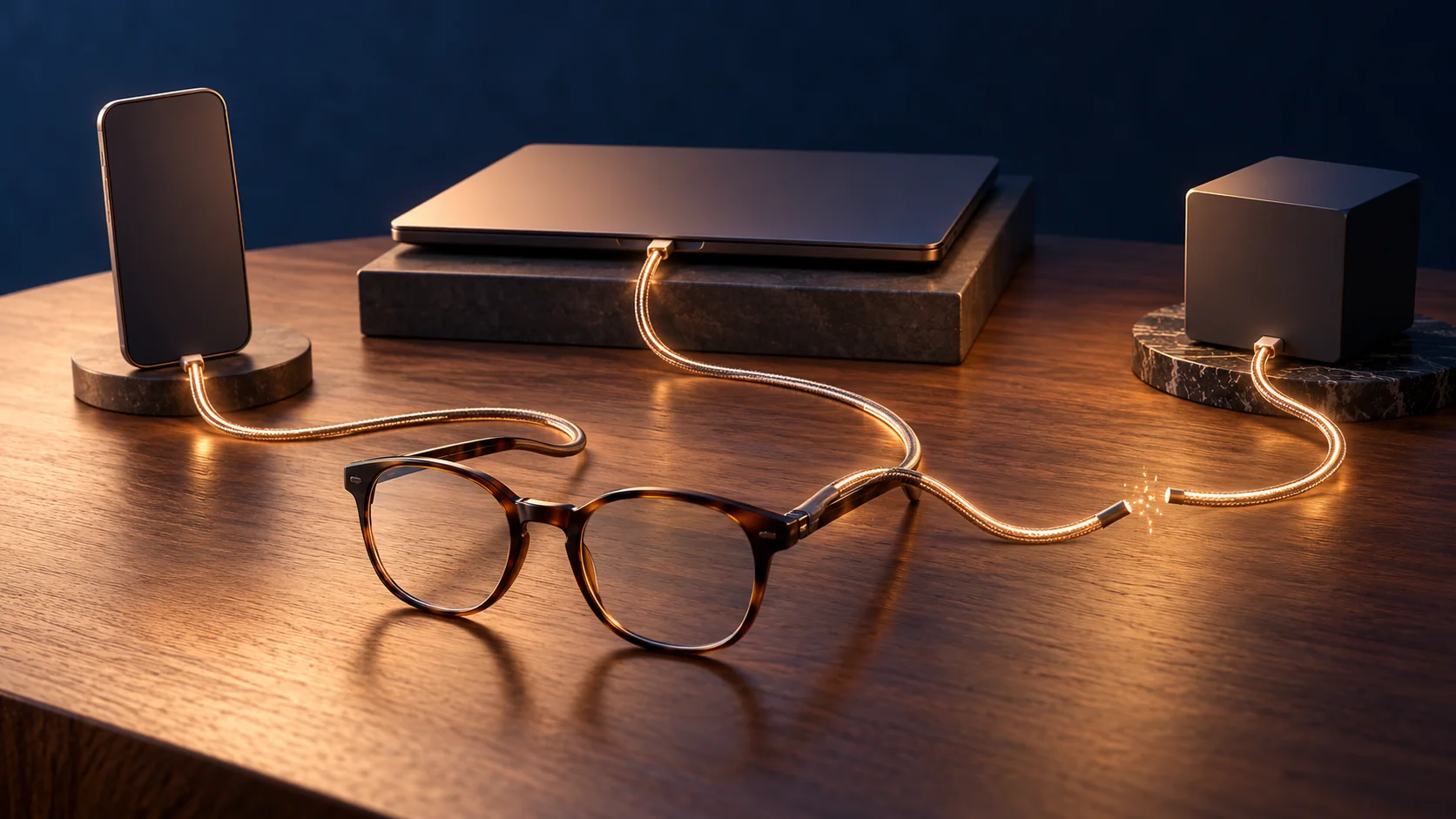
Find your connection route
These routes concern wired display glasses used as an external screen. They do not establish support for camera-based AI features or standalone XR apps. Manufacturer instructions for your exact combination remain the deciding reference.
| Your source device | Route to investigate | Check before buying |
|---|---|---|
| USB-C phone, tablet or computer | Direct cable if its port outputs DisplayPort video | Exact model, video-capable port, glasses cable and available power |
| Lightning iPhone | Apple Lightning Digital AV Adapter plus a compatible HDMI-to-glasses adapter | Both adapters, power and exact glasses support |
| Steam Deck / ROG Ally | Direct USB-C is listed for XREAL One series | Charging during use needs a suitable additional accessory |
| PC, PlayStation or Xbox using HDMI | HDMI source → compatible powered converter → glasses | Conversion direction, power, audio and supported display mode |
| Switch / Switch OLED | Compatible powered hub, or dock HDMI plus a glasses adapter | Continuous power and controller arrangement |
| Switch 2 | Accessory explicitly documented for Switch 2 | Do not transfer an original-Switch compatibility claim |
| Switch Lite | No standard wired display-output route | Its USB-C is specified for charging; a dock does not add TV output |
USB-C phones: check the exact model
Look for DisplayPort over USB-C or DP Alt Mode in the source device’s specifications. VITURE’s Pro/One setup guide calls for checking the device maker’s documentation. For Android, neither the operating system name nor successful charging proves video support. Ask about your exact model and port, not simply whether the glasses work with Android.
Apple’s current support page lists iPhone 15 models, iPhone 16 models except 16e, iPhone 17 models except 17e, and iPhone 18 Pro models for wired external displays. Do not shorten that to “every iPhone 15 or later.” VITURE separately excludes iPhone Air and iPhone 16e. For any model absent from the supported list, confirm its capability before buying an adapter.
Apple describes ordinary output as mirroring unless an app provides a separate second-screen experience. Getting a picture therefore does not guarantee a desktop interface or several virtual monitors. Check your intended app as well as the connection.
Lightning iPhones need a specific adapter chain
For supported older iPhones, VITURE documents its HDMI XR Adapter together with Apple’s separately sold Lightning Digital AV Adapter. Budget for the complete chain and its power needs. A cable that only changes connector shape does not establish this video path.
That VITURE adapter excludes Beast glasses and offers only partial support for Luma Ultra. This is a model-specific example, not permission to mix any brand of glasses and adapter. Confirm the exact pairing and your chosen app; the manufacturer’s broad playback marketing is not our test result.
Computers and handheld PCs: start with one screen
XREAL lists Steam Deck, Steam Deck OLED and ROG Ally among direct-connection examples for its One series. Its requirement is DisplayPort video plus 5V/1A power. For a Windows laptop or Mac, verify the particular port you plan to use rather than assuming every USB-C socket has the same capabilities.
Use the glasses manufacturer’s specified cable first. In VITURE’s Pro/One instructions, the supplied cable connects to the glasses’ magnetic port. If a compatible computer shows no image, its guide suggests checking display settings, trying another suitable port or disconnecting another external monitor where the computer has an external-display limit. Establish ordinary output before troubleshooting optional spatial software.
HDMI consoles and PCs: read the adapter direction
XREAL documents HDMI-to-USB-C conversion for PlayStation, Xbox and HDMI computers. Your source is HDMI and your destination is the glasses. A listing for a USB-C-to-HDMI laptop adapter describes the opposite route; buy only an adapter explicitly documented for the required direction and glasses, with its specified power connection.
VITURE’s HDMI XR Adapter names PS5, PS4, Xbox Series X|S and PC, subject to its glasses restrictions above. Verify resolution, refresh rate and audio for the complete chain. An adapter connection alone is not evidence for a particular latency or high-refresh gaming result.
Switch, Switch 2 and Switch Lite are separate cases
For original Switch and Switch OLED, XREAL’s Hub page lists compatibility and says Switch must remain connected to power. Nintendo also documents HDMI output through the original and OLED docks. Either route still needs the correct glasses connection; plugging frames straight into the console is not the documented setup.
For Switch 2, VITURE explicitly documents Mobile Dock Mini and USB-C XR Charging Adapter Ultra. Mobile Dock Mini’s combined mode uses its battery; in adapter-only Solo Mode, it requires external power. VITURE specifies a PD power bank delivering at least 45W at 15V/3A for that Solo setup. Follow the accessory’s connection order and power instructions. Mobile Dock Mini has no HDMI input, so it is not the HDMI-console solution described above.
XREAL’s One-series tutorial mentions Switch 2 with its Hub, while the Hub store page’s compatibility list names only Switch and Switch OLED. We cannot resolve that inconsistency from the retrieved pages. Ask XREAL to confirm your exact Hub and glasses combination before purchasing it for Switch 2.
Nintendo specifies Switch Lite’s USB-C connector for charging only. Treat it as a stop sign for this standard wired-display plan: adding a dock or passive cable does not supply the missing TV-output capability.
Video, charging and spatial features are different checks
An accessory can pass video and power while limiting other functions. VITURE says Adapter Ultra lacks wired data communication with the glasses: on Android, mirroring and charging work, but SpaceWalker features needing that communication, such as PinMode and head tracking, are unavailable. It also lists restrictions for Windows handhelds. Check the software-and-accessory combination, not just the glasses feature list.
Before paying, write one complete shopping list: source device, exact glasses, cable, adapter or dock, power supply and required app. Ask the seller to confirm that combination for your main task and check the return conditions. Our practical advice is to prove the basic screen route first, then pay for extra spatial features only when their requirements are clear.
Compare display glasses with AI glasses and VR
Dated XR prices: include the accessories in your budget
Topics: Display glasses · Compatibility · XREAL · VITURE · Gaming
XR glossary: understand the terminology →
Sources & verification
- Apple Support: USB-C connections and supported iPhone displays (primary)
- XREAL One series: connecting devices (primary)
- XREAL Hub: US compatibility and power notes (primary)
- VITURE Pro & One series: device setup (primary)
- VITURE: HDMI XR Adapter (primary)
- VITURE: USB-C XR Charging Adapter Ultra (primary)
- VITURE: Mobile Dock Mini (primary)
- Nintendo: Switch technical specifications (primary)
Manufacturer documentation opened October 10, 2026. This is a connection-planning guide, not a hands-on compatibility certification or an exhaustive device list. Examples apply to the named glasses and accessories only. Apple’s exact model list takes precedence over broad vendor wording about iPhone 15 and later. XREAL’s Switch 2 Hub documentation is inconsistent across the retrieved pages, so that combination is not confirmed here. No latency, comfort, app playback, stock or price claim is independently tested. Prepared under Rodrigo’s standing editorial authorization; individual human review is not claimed.
No corrections recorded.
Commercial disclosure: no paid placement or affiliate tracking is included in this article.